Surge in Yellow Phone Screen Reports: Software Updates, Night Light Glitches, and Panel Degradation Explained
Before booking an expensive bench repair, work through this sequence of software recalibrations. Most display discoloration issues resolve within the first three steps.
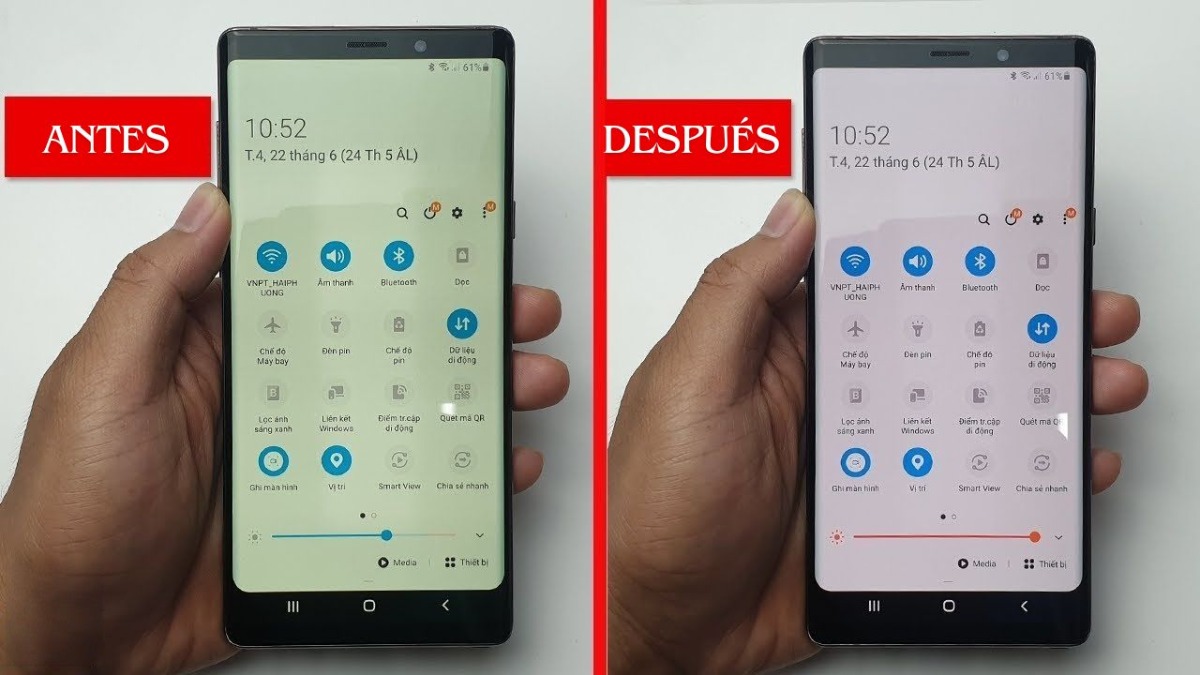
First, run a screenshot test. Capture your home screen, send the image file to a laptop or secondary device, and examine it there. If the screenshot looks yellow on the second device, an active OS software profile or accessibility transform is modifying the framebuffer. If the image appears crisp white on the second device, your issue sits within the display hardware, ribbon connector, or driver pipeline.
Next, clear out your scheduling rules:
• On iOS: Head to Settings > Display & Brightness. Toggle off both True Tone and Night Shift. Next, check Settings > Accessibility > Display & Text Size > Color Filters and ensure the master toggle sits at Off.
• On Android: Open Settings > Display. Shut down Night Light (or Eye Comfort Shield on Samsung devices; Reading Mode on Xiaomi/HyperOS). Navigate to Color Scheme or Screen Mode, set the profile to Vivid or Standard, and slide the manual color temperature slider toward Cool.
Third, purge hidden graphics caches. Android builds can retain corrupt surface flinger profiles following delta updates. Boot the handset into Recovery Mode (hold Power + Volume Up during power-on), navigate to Wipe Cache Partition using volume buttons, confirm, and reboot. This clears temporary runtime configurations without deleting personal data.